 SweepBoardby TRM
From alarm to stand down in five steps
Set up once per site. After that, a drill or a real evacuation runs the same way every time, on the phones your people already have.
Ready in under a minute per person
There is nothing to install from an app store and no warden accounts to manage.
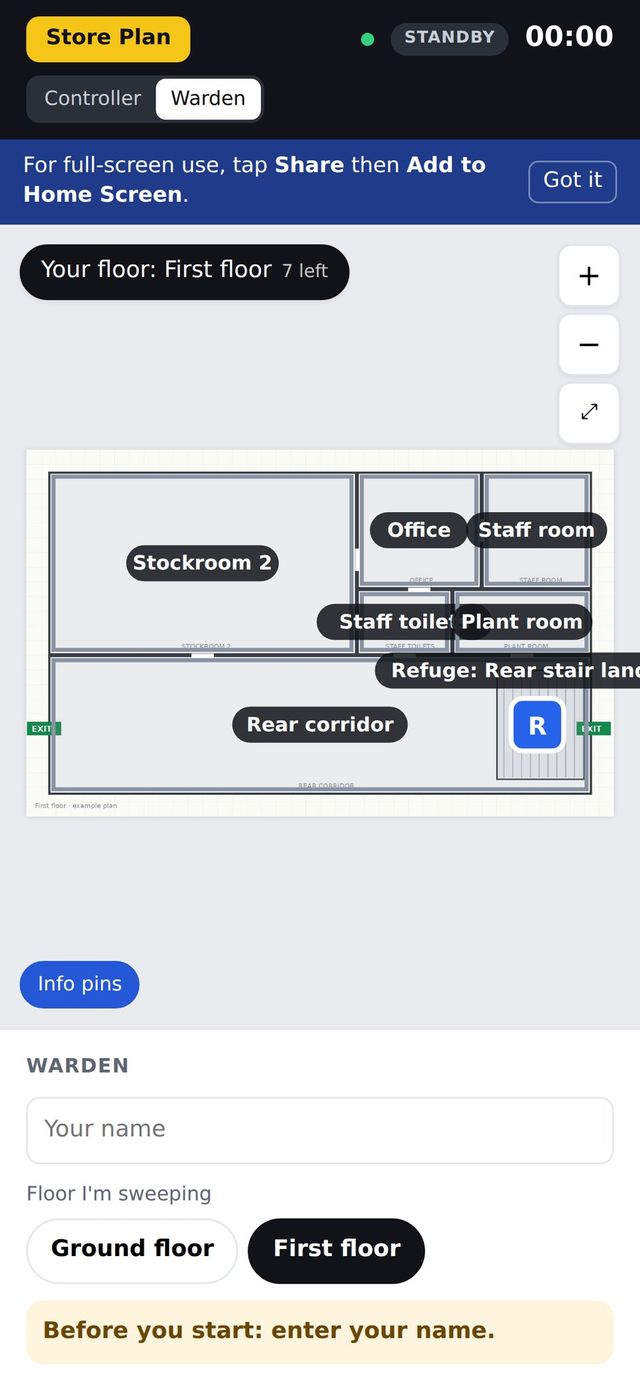
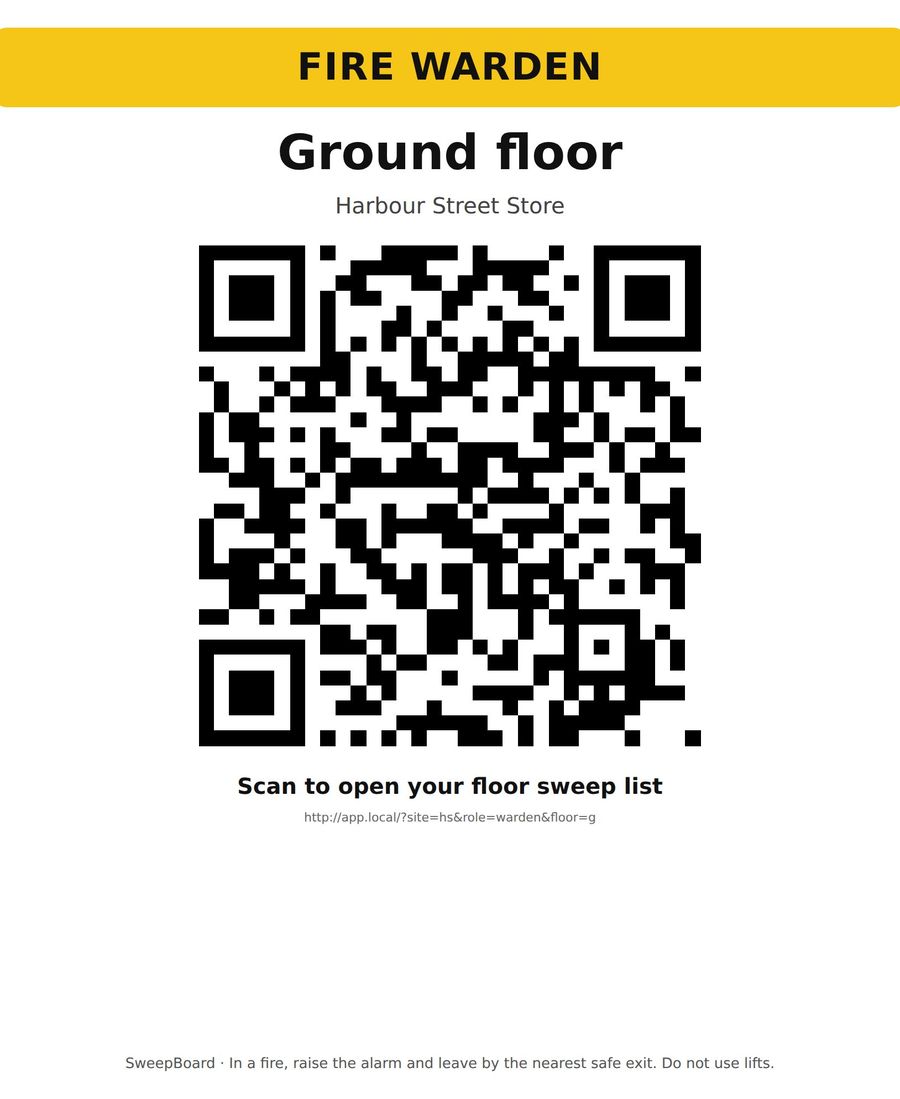
Scan the poster
Each floor has its own QR poster. Controllers have one of their own. Scanning opens SweepBoard on the right view.
Add to Home Screen
SweepBoard sits on the phone like any other app, with its own icon. iPhone and Android.
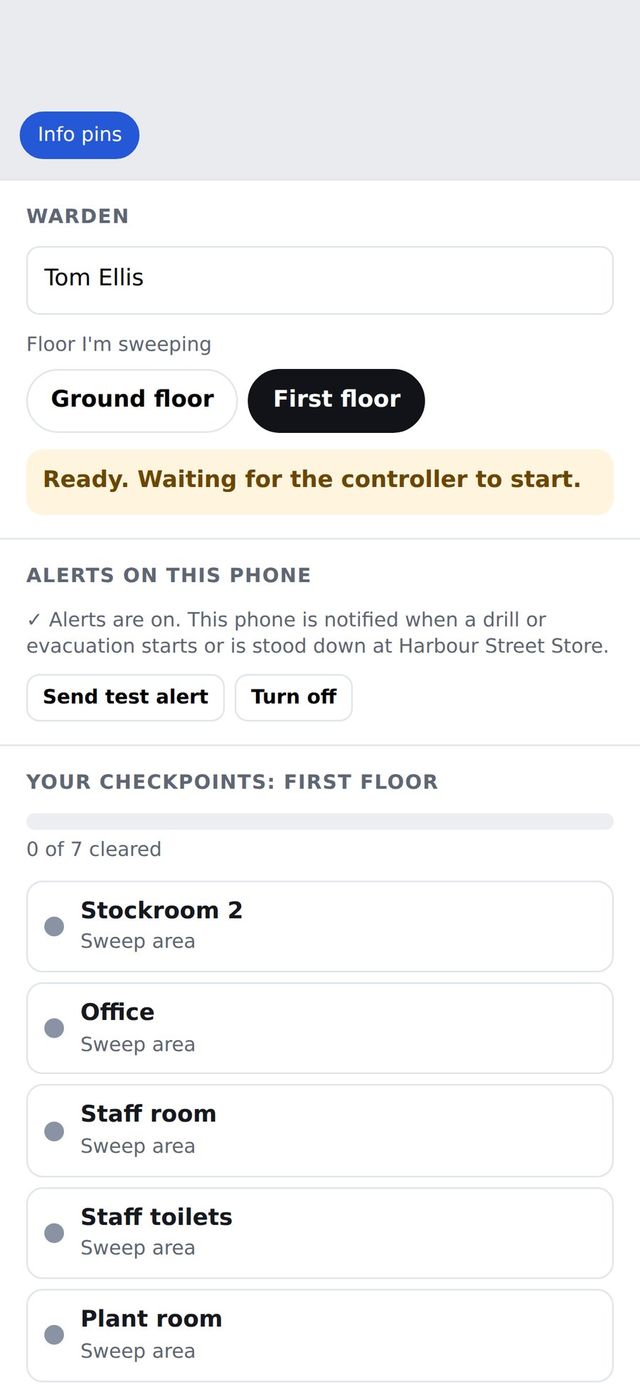
Turn on alerts
One tap, then a test alert to prove it works. The phone is now ready for a drill or the real thing.
Raise it
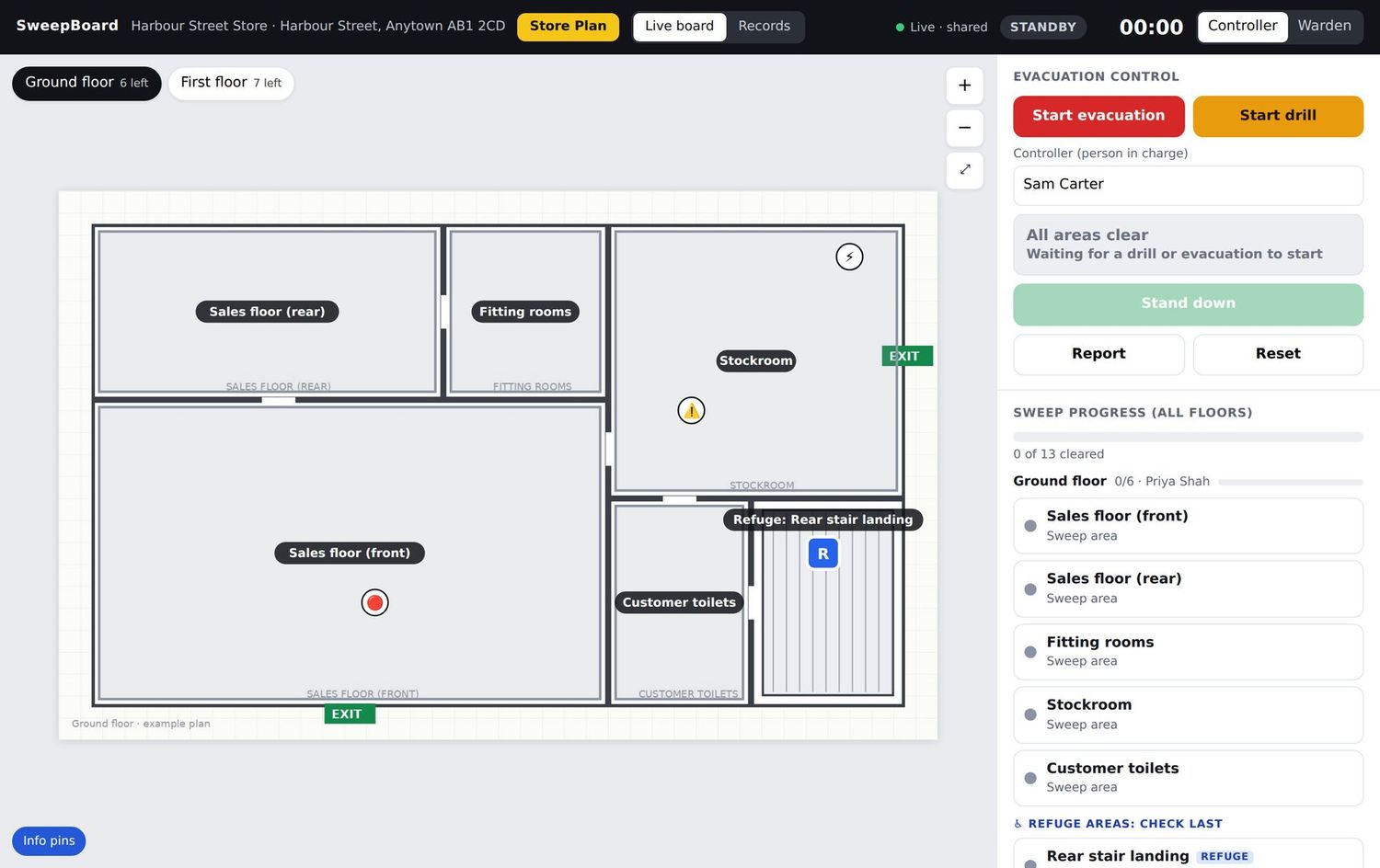
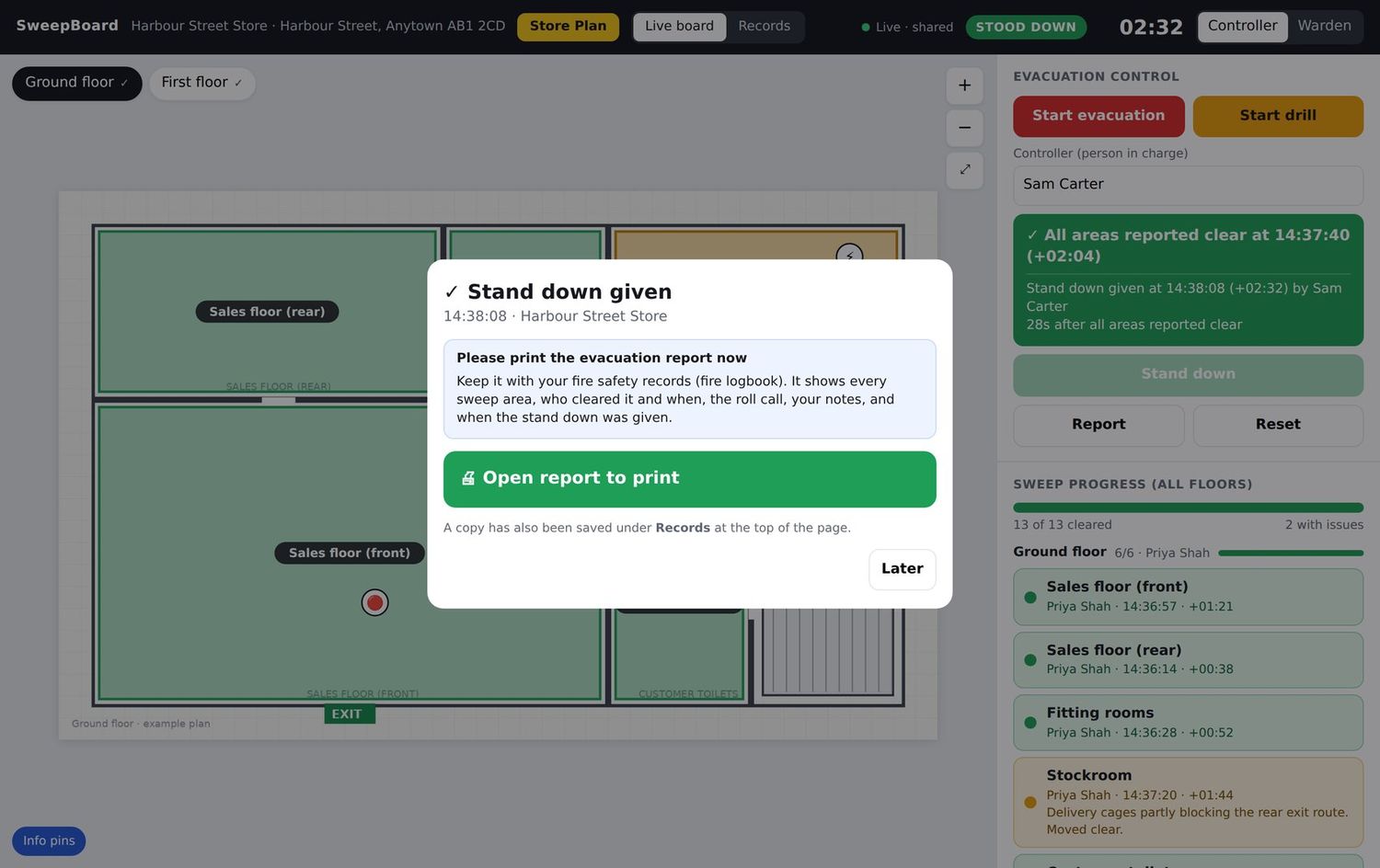
The incident controller opens the board and taps Start evacuation, or Start drill. The clock starts and the board goes live.
- Evacuation and drill are recorded separately
- The controller’s name is logged as the person in charge
- Any controller can take over on another device and sees the same board
Alert the wardens
Every phone registered for the site gets an alert within seconds. It names the site and tells each warden which floor to sweep.
- Tapping the alert opens the warden’s own floor
- Reminders repeat to phones that have not opened SweepBoard
- A red badge stays on the app icon while the incident is live
- The phone that started the incident is not alerted
Sweep
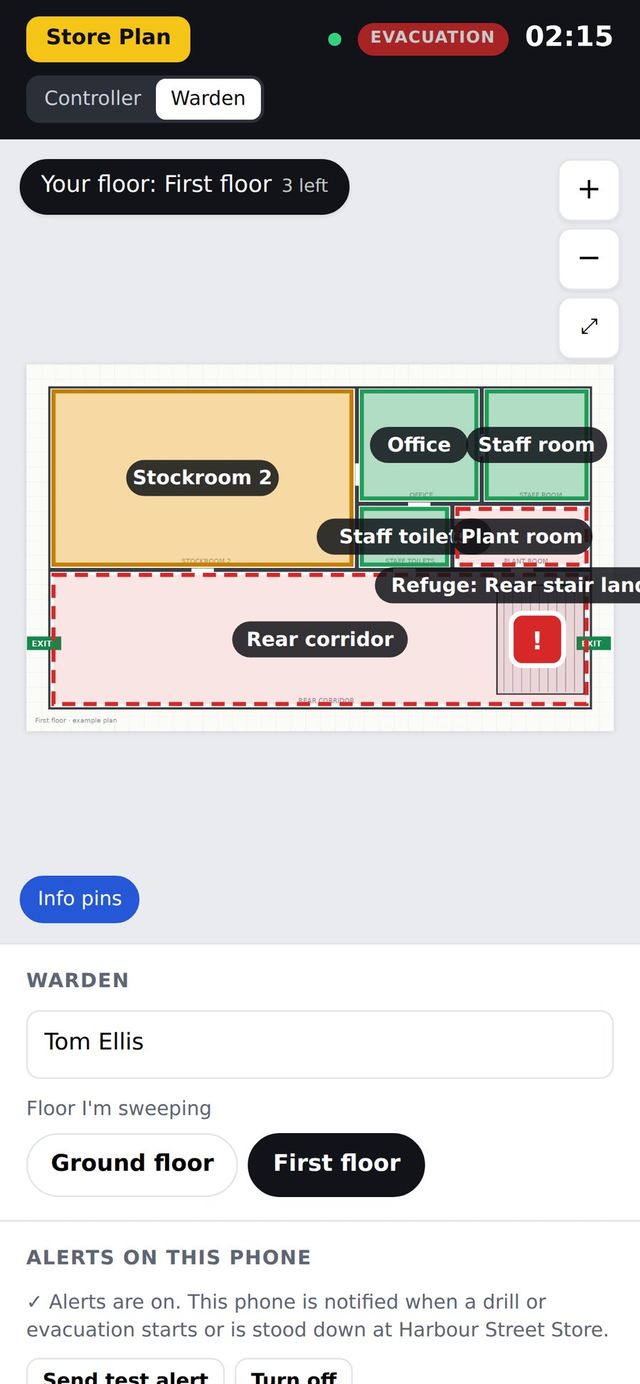
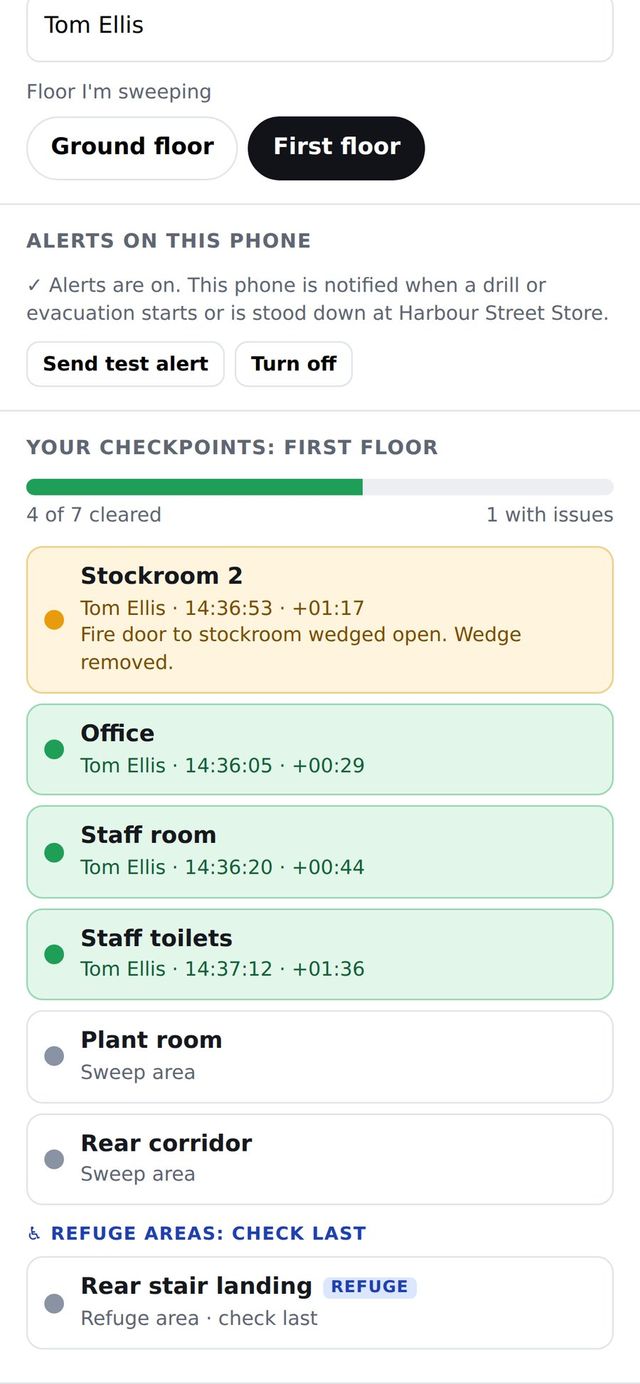
Wardens walk their route and tap each area as they go. The list is in the order the areas should be checked.
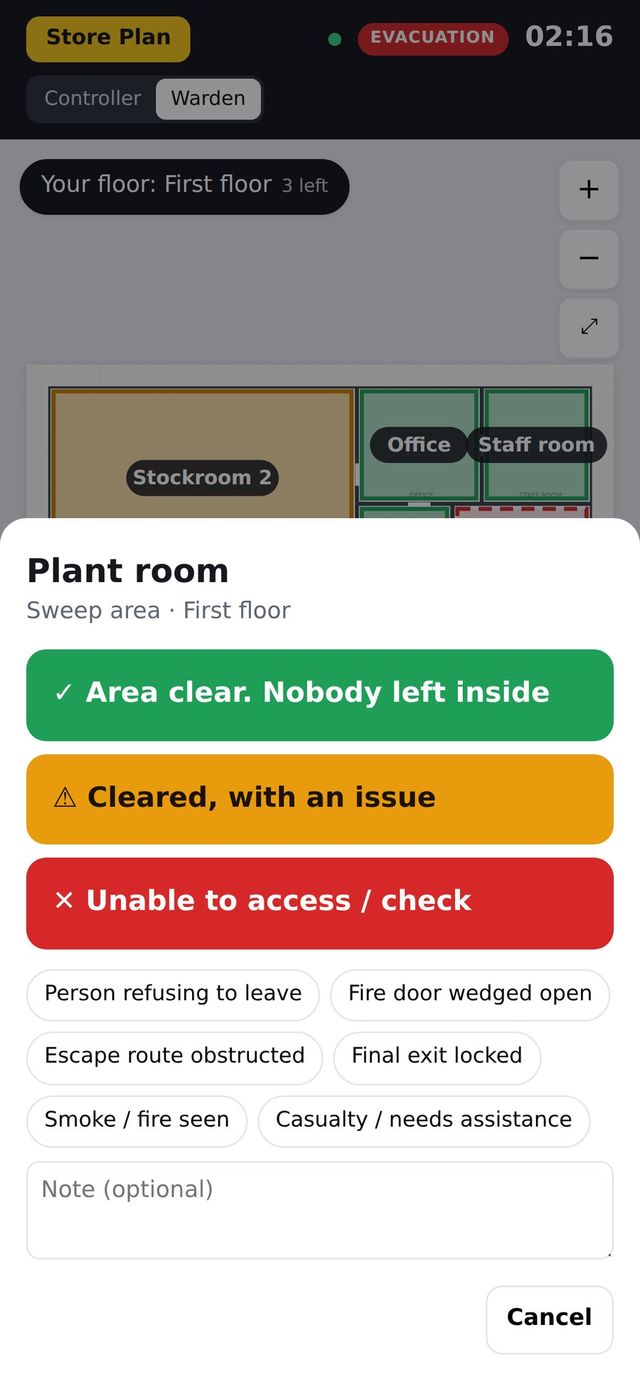
- Clear: the area has been checked and is empty
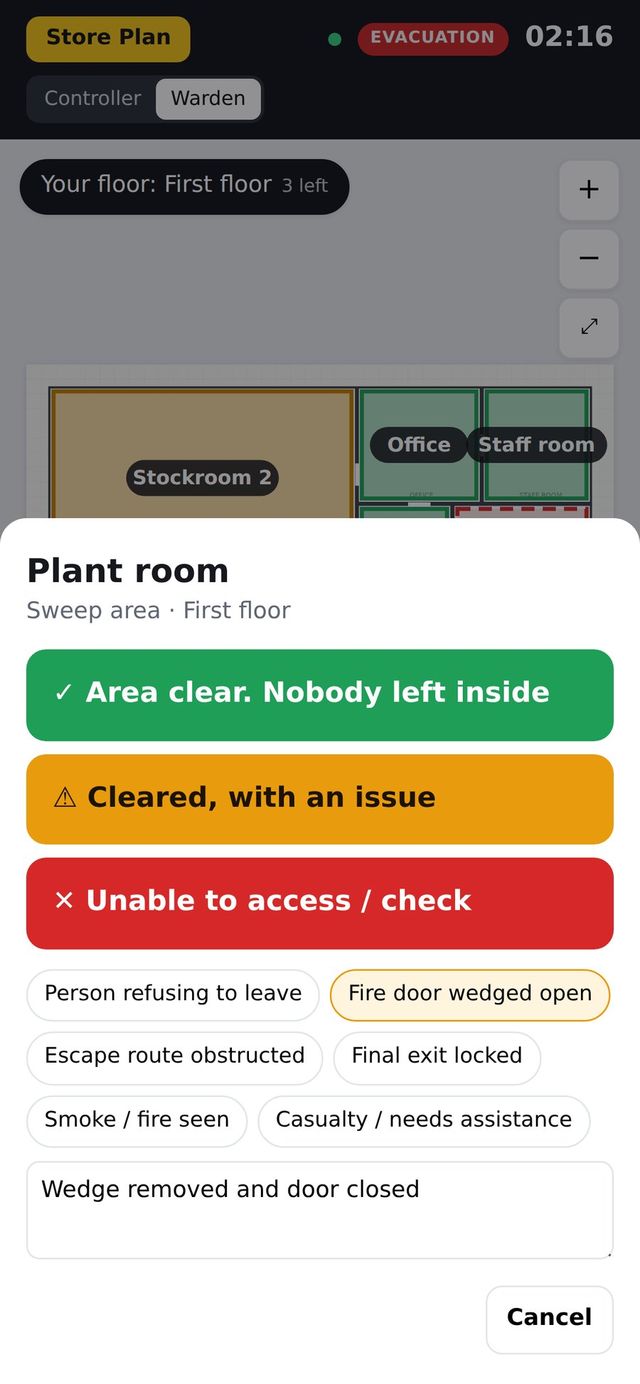
- Issue: something needs attention, with a short note
- No access: the warden could not get in
- The controller’s floor plan changes colour the moment each tap is made
Confirm refuges and roll call
The refuge is always the last check on each floor. If someone is waiting, the warden reports how many people and what help they need, and the board flags it for the controller.
- Refuge empty, in use, or cleared after assistance
- Roll call ticked for staff, visitors and contractors
- Notes for the fire service captured as you go
- The all-clear time is stamped only when every area is swept and no refuge is in use
Stand down
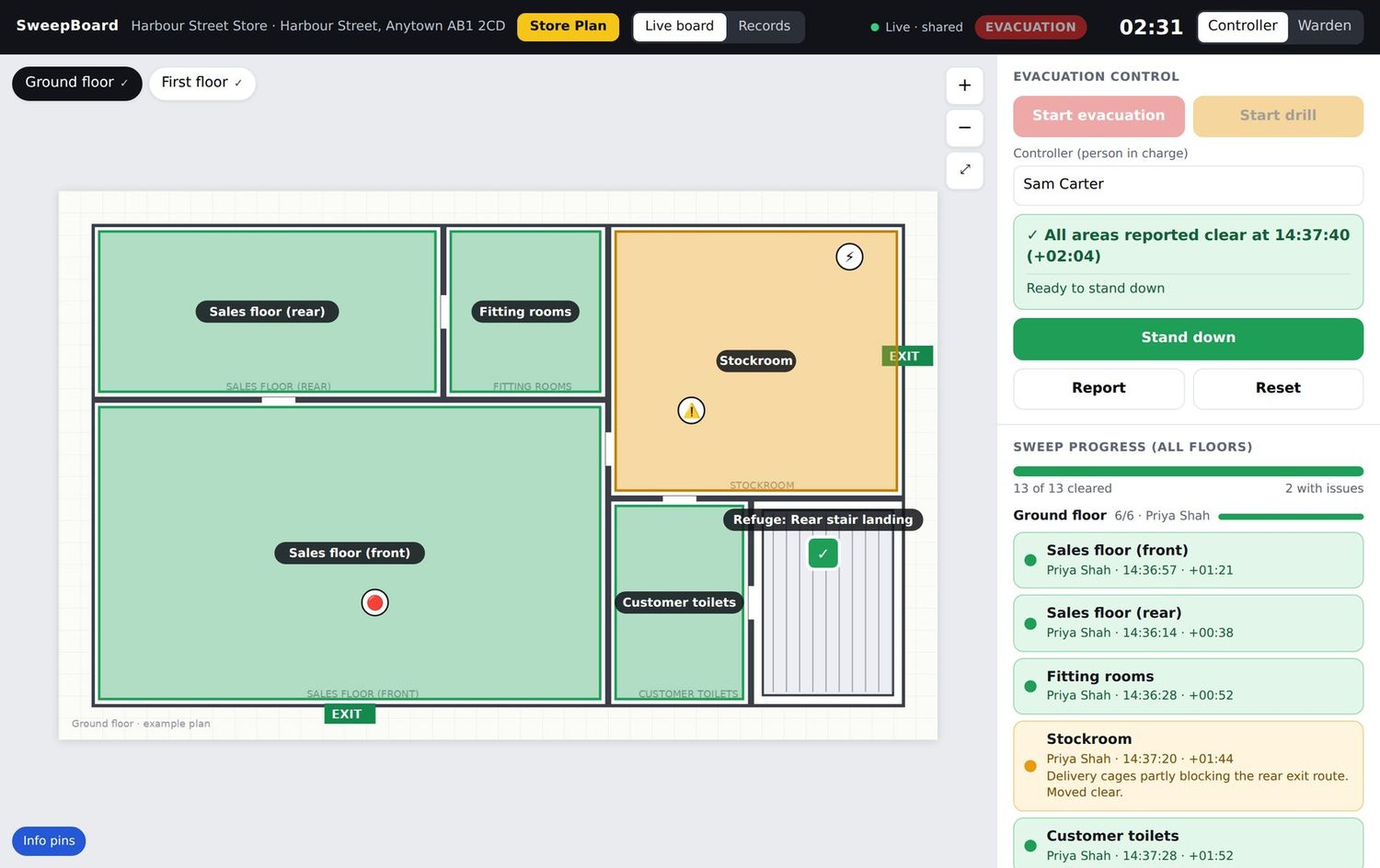
One tap ends the incident. Wardens get a stand down alert, the badge clears and the full record is saved to the site’s history.
- A complete timeline of who did what, and when
- Area-by-area sign-off with names and times
- Printable as a drill or incident report
- The board returns to standby, ready for next time
Three roles. One shared picture.
Incident controller
Starts and stands down the incident, watches the board, confirms roll call and briefs the fire service. Usually on a tablet, laptop or phone at the control point.
Fire warden
Sweeps their floor and taps each area. Checks the refuge last. Uses their own phone, with their name against every action.
Site administrator
Uploads floor plans, draws the sweep areas, sets the emergency plan and prints the QR posters. TRM can do this for you.
Your floor plans, your areas, your route
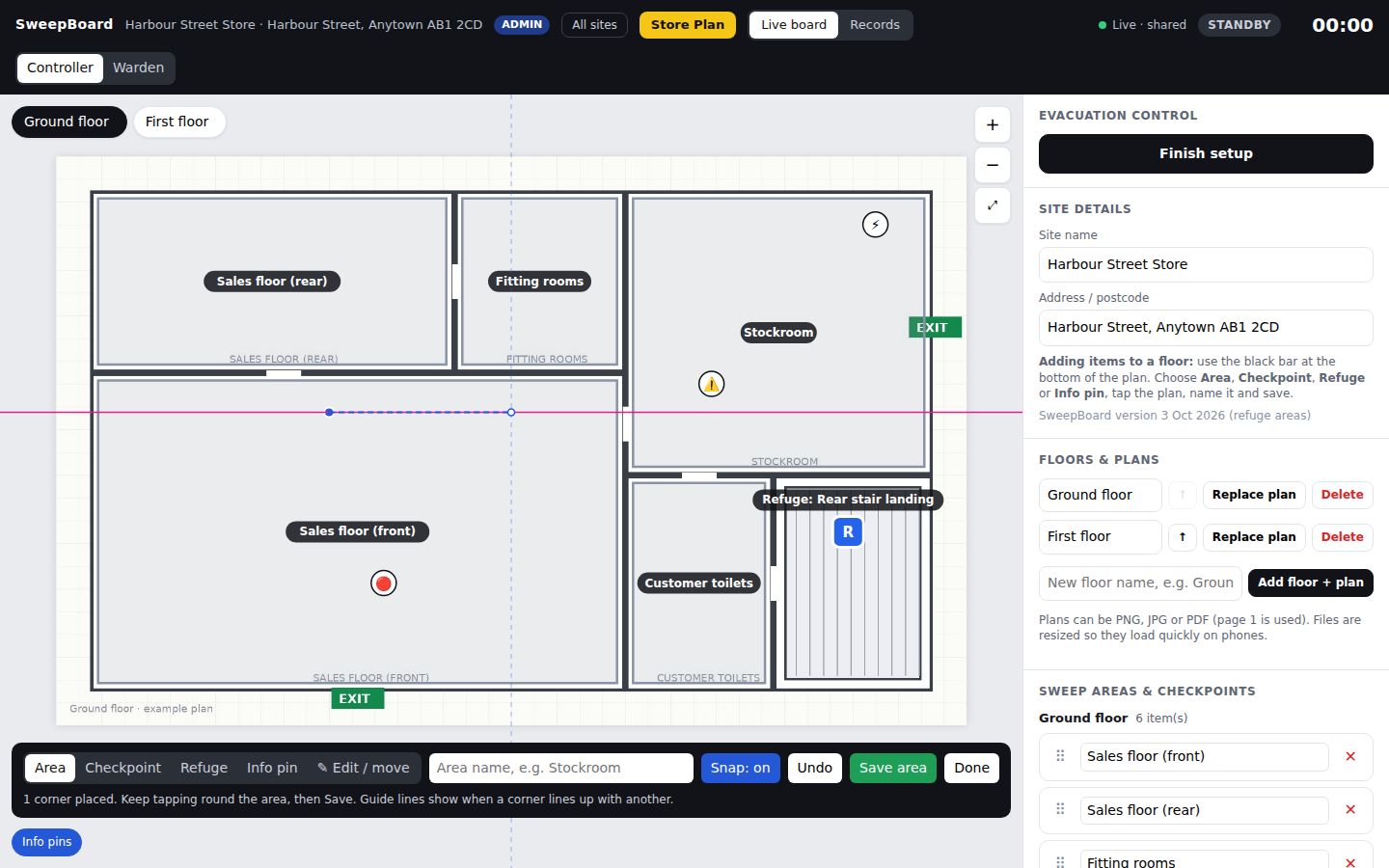
Upload an image of each floor and draw the areas a warden must check. Put them in sweep order. Mark the refuges. Add the alarm panel, isolation points and hazards.
- Works from any plan image: architect drawing, fire plan or a clear photo
- Alignment guides keep shapes neat and accurate
- Drag areas into the order wardens should walk them
- Print QR posters and paper checklists when you are done
Most sites take less than an hour to set up. For pilots and roll-outs, TRM does it for you from the plans you send us.
Watch it run, then run it yourself
The live demo plays a complete drill in 15 seconds. Then take the controls.